
The Complete Guide to eSIM Cards: How They Work and Why You Need One
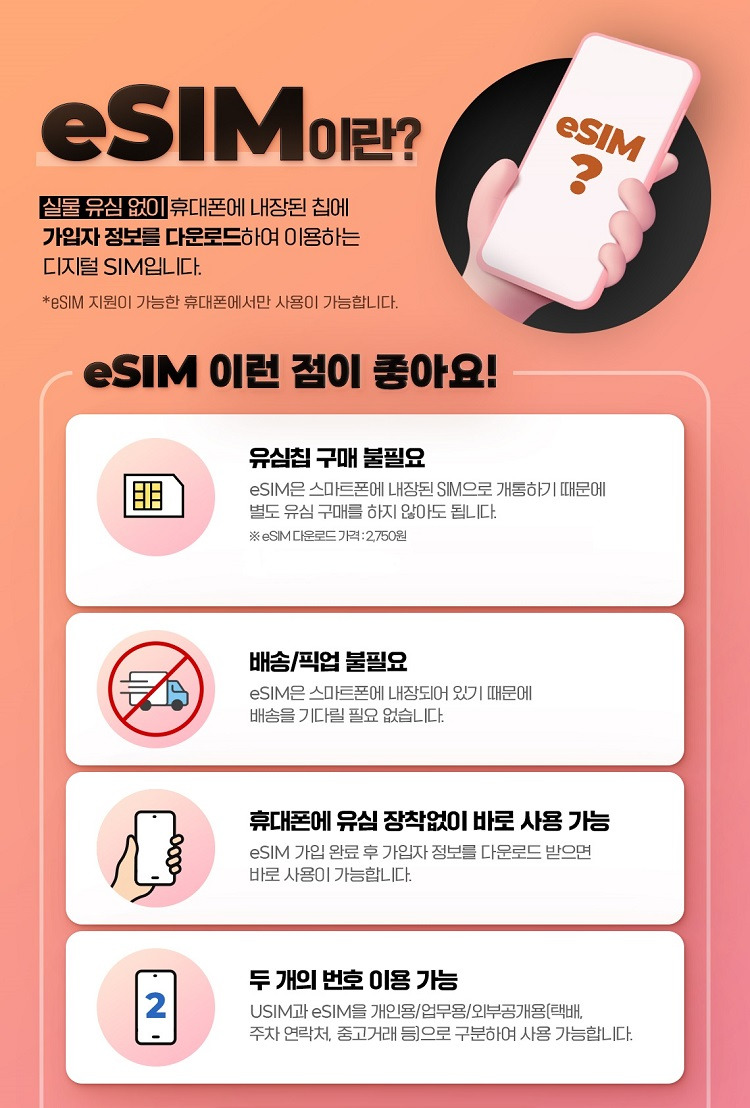
Forgetting to swap a physical SIM before traveling is a thing of the past, as an eSIM card is a digital SIM embedded directly into your device. It works by downloading a carrier profile over the internet, which your phone’s hardware then uses to connect to a mobile network without any plastic card. To use it, you simply scan a QR code from your carrier or install a profile via an app, then activate it in your settings — no tray, no waiting, and no risk of losing your chip. This built-in technology offers the **freedom to switch between multiple operators and plans instantly**, all while keeping your primary number intact.
What Exactly Is an Embedded SIM and How Does It Differ From a Physical One?
An embedded SIM, or eSIM, is a permanent chip soldered directly into your phone, tablet, or smartwatch, whereas a physical SIM is a removable plastic card you slot into a tray. The core difference is that the eSIM has no physical form to swap; you activate it by scanning a QR code or downloading a carrier profile. This means you can switch networks digitally in minutes without waiting for a new card to arrive or fiddling with a paperclip to eject a tray. Unlike a physical SIM, which ties you to one carrier at a time, the eSIM lets you store multiple profiles and switch between them in your settings. Q: Is the eSIM locked to one carrier? A: No, it is hardware-agnostic; the profile is rewritable, so you can erase and download a new operator anytime, offering far greater flexibility and durability since there is no fragile card to lose or damage.

Understanding the Built-In Chip: No More Plastic Cards
Understanding the built-in chip means recognizing that the eSIM is a soldered component inside your device, not a removable card. This eliminates the physical slot entirely, freeing internal space for other hardware like larger batteries. Switching profiles without a physical card becomes a software action, so you can download a carrier plan directly onto the chip. The chip itself is rewritable, allowing you to erase and store multiple profiles over time. However, you cannot transfer it by moving it between phones; the embedded nature ties it permanently to the device’s logic board.
- No tray to eject or lose when swapping networks.
- Activation happens by scanning a QR code or entering a code, not inserting plastic.
- The chip’s firmware manages all stored profiles securely within the device.
Key Differences Between a Traditional SIM and a Digital Profile
The core distinction between a traditional SIM and a digital profile is physicality versus software. A traditional SIM is a removable plastic chip that must be inserted or swapped to change carriers, locking you to a single active number. A digital profile, by contrast, is a downloadable file stored in the eSIM’s secure element, letting you switch operators remotely without touching hardware. While a physical SIM ties your identity to the card itself, a digital profile ties it to the device’s embedded chip, making transfers between phones a matter of scanning a QR code rather than waiting for a new card. This shift also changes capacity: a traditional SIM holds one profile, whereas an eSIM can store multiple digital profiles, enabling instant carrier switching. For everyday use, the key difference is that a digital profile eliminates the physical swap, but it also means your number is harder to move to an old, non-eSIM device.
Summary: Traditional SIM = removable, single-profile hardware; digital profile = embedded, multi-profile software, switched via download, not physical replacement.
How Does the Activation Process Work for a Digital SIM?
When you grab an eSIM card, activation starts with a quick scan—your carrier hands you a QR code, and your phone’s camera reads it to download the profile directly onto the device. That profile acts like a tiny digital handshake, pairing your phone’s IMEI with your plan’s credentials, so there’s no physical plastic to wait for. Once scanned, you’ll usually pick a label for the line, and the eSIM activates instantly over Wi-Fi or your cellular connection—often in under two minutes. If you’re switching carriers, the old profile stays dormant unless you delete it, which is a huge plus for travel. The trick is ensuring your phone is unlocked, or activation can silently fail and leave you guessing. After that, just toggle the line on in settings, and you’re live—no SIM tray needed.
Scanning a QR Code: The Quickest Way to Get Connected
When you grab a new eSIM, scanning a QR code is the quickest way to get connected—no manual entry or waiting for SMS. Your carrier emails or shows a QR on their app; you just open your phone’s Settings, tap “Add Cellular Plan,” and point the camera at it. The activation profile downloads in seconds, automatically filling in the SM-DP+ address and your unique activation code. Within a minute, your line is live. Just keep the QR handy until the profile installs—if you switch phones later, you’ll need to scan it again to re-download the same eSIM.
Manual Setup Options When You Don’t Have a QR Code Handy

If your carrier’s QR code is missing, scratched, or simply unavailable, you can still activate an eSIM through **manual setup options without a QR code**. Most carrier apps or websites let you enter the SM-DP+ address and an activation code—both found in your email confirmation or account dashboard—directly into your phone’s cellular settings under “Add eSIM.” On both iPhone and Android, choose “Enter Details Manually” instead of scanning. This method works flawlessly for travel eSIMs and postpaid plans, though double-check that your device is unlocked. The entire process takes under two minutes once you have the credentials copied.
Q: Can I manually activate an eSIM if I lost the QR code?
A: Yes—just locate the SM-DP+ address and activation code in your carrier’s online account, then input them manually in your phone’s eSIM settings; no QR needed.
What Are the Main Benefits of Switching to a Virtual SIM?

Switching to a virtual SIM, or eSIM card, eliminates the need to physically swap plastic cards when changing carriers or traveling abroad, as you can download a new profile instantly. This is one of the main benefits for frequent travelers, who avoid roaming fees by switching to local data plans without visiting a store. An eSIM also frees the physical SIM slot for a second line, allowing you to keep your primary number active while using a data-only plan. Additionally, it enhances security—if your phone is lost, you can remotely erase the eSIM, and since there is no removable card, it cannot be stolen or cloned. Provisioning a new service is usually done via a QR code within minutes, making setup faster than waiting for a physical SIM to arrive by mail.
Instant Switching Between Mobile Plans Without Changing Hardware
With an eSIM, switching mobile plans instantly means you can hop between carriers or data packages right from your phone’s settings, no physical SIM swap required. Just scan a QR code or download a profile, and your new plan goes live in seconds while your old one stays saved for later. This is a lifesaver when traveling—land in a new country, buy a local data pack, and switch it on without hunting for a tiny tray or risking losing your current SIM. You can even keep two active plans simultaneously, so you never miss calls on your home number while using a cheaper data-only option abroad.
- Change from prepaid to postpaid or vice versa mid-month without buying new hardware.
- Test a different carrier’s coverage for a week, then revert to your original plan if it’s not better.
- Switch to a promotional plan for a specific trip, then flip back when you return—all in under a minute.
Traveling Abroad Without Hunting for Local Plastic Cards
Traveling abroad without hunting for local plastic cards means skipping the chaotic arrival-hall SIM kiosks and the fragile paper registration forms. With an eSIM, you activate a data plan before departure, so your phone works the moment the plane lands. You avoid carrying a second nano-SIM, which can get lost or require an ejector tool. Instant connectivity replaces the local SIM scavenger hunt, saving hours and preventing airport price gouging. Even in countries requiring ID for physical SIMs, an eSIM sidesteps that bureaucracy entirely. You simply scan a QR code or download a profile, then switch carriers digitally if coverage weakens.
Q: Do I still need a local plastic SIM for reliable service?
A: No—for most travelers, an eSIM provides equal or better coverage through regional networks, without the hassle of locating a verified retailer or juggling multiple cards.
How Do You Manage Multiple Profiles on One Device?
When juggling work and personal lines on a single phone, an eSIM card lets you store multiple profiles and switch between them without swapping physical SIMs. In your device’s settings, locate the “Mobile Network” or “Cellular” menu, where each active profile appears as a separate line—tap one to make it the default for calls, texts, and data. You can also assign specific profiles to specific contacts or apps, so your work number only rings during office hours, while your personal data remains untouched for streaming. The real trick is disabling a profile temporarily instead of deleting it, which preserves your travel data or plan details for next month. For a quick swap, use the control center toggle to switch primary lines on the fly, keeping your commute seamless. Label each profile clearly (e.g., “Work,” “Spain Trip”) to avoid confusion, and always keep one profile as a fallback with a basic local carrier in case the other loses signal underground.
Storing Several Plans and Choosing Which One Is Active
With an eSIM, your phone can hold several plans at once, but only one is active for cellular data at a time. You simply open your settings, tap “Cellular” or “Mobile Data,” and pick which profile you want to use right now—switching takes seconds and needs no new SIM card. This is perfect for juggling https://baztel.co/ a work number, a personal line, and a travel plan, all stored in one device. The inactive plans stay fully intact, just dormant, so you can flip back without re-downloading anything. Just remember that calls and texts on inactive lines may be missed unless you enable “Allow Cellular Data Switching.” Choosing the active eSIM profile becomes a daily habit for frequent travelers.
- Label each plan (e.g., “Home,” “Work,” “Japan”) to avoid confusion when selecting.
- Use “Primary” and “Secondary” syntax in phone settings for dual-SIM clarity.
- Set one plan as the default for data, but manually override it whenever you need speed or savings.
Labeling and Organizing Your Digital Line Profiles
When managing multiple eSIMs, treat your device’s settings as a command center by assigning a distinct label to every digital line profile. Instead of tolerating generic names like “Secondary,” rename profiles to reflect their purpose—e.g., “Work UK,” “Travel Japan,” or “Personal Data.” This practice eliminates guesswork when selecting a line for calls, messages, or cellular data, preventing accidental charges on the wrong plan. Additionally, organize profiles by grouping similar lines together: keep work-related eSIMs in one section, personal numbers in another, and expiring travel eSIMs at the top for quick deletion. Use color-coding if your device supports it, pairing visual cues with labels for instant recognition. Periodically review and purge inactive profiles to avoid clutter, ensuring your active lines remain visually dominant and error-free. Strategic eSIM profile labeling transforms a chaotic list into a streamlined, tap-ready toolkit.
Labeling and organizing your digital line profiles ensures every eSIM is instantly identifiable, grouped by use case, and easy to manage without confusion.
Which Devices Support This Technology and How to Check Yours?
Your phone’s eSIM support isn’t visible from the outside—it hides inside the hardware. Most recent iPhones (from XS onward), Google Pixels (from 3 onward), and Samsung Galaxy flagships (from S20 onward) include it, but budget models often skip it. To check yours, open *Settings* and look for a **“Mobile Network”** or **“Cellular”** section—if you see an option to *“Add eSIM”* or *“Download a SIM”* rather than only “Insert SIM,” you’re likely ready. Another trick: try scanning a carrier’s QR code from a trial eSIM; the phone either accepts it or tells you it’s unsupported. For iPhones, dial `*#06#`—if an EID number appears alongside the IMEI, you’re good. Androids vary, so check the manufacturer’s spec page for “eSIM” under connectivity.
When I upgraded last year, the real test wasn’t the spec sheet—it was finding that lonely “Add eSIM” button buried two menus deep.
If you don’t see it, your device likely lacks the chip entirely, regardless of carrier support.
Finding the “Add Mobile Plan” Option in Your Settings Menu
To locate the “Add Mobile Plan” option in your settings menu, begin by opening the **Settings** app on your device. On an iPhone, tap **Cellular** (or **Mobile Data**), then select **Add Cellular Plan**. For most Android devices, navigate to **Connections** or **Network & Internet**, then tap **SIM manager** or **Mobile plans** and choose **Add mobile plan**. If your device supports eSIM, the option appears directly; if it is greyed out or missing, your hardware likely lacks eSIM support. For iPads, go to **Settings > Mobile Data**. On newer models, you may also scan a QR code directly after tapping the option.
- Open Settings
- Locate the network or SIM section
- Tap “Add Mobile Plan” or equivalent
- Proceed with carrier QR code or manual details
What to Do If Your Phone Lacks Support: Workarounds and Limits
If your phone lacks eSIM support, the primary workaround is to use a physical SIM card, as carriers are still obligated to provide them. You might also explore a dedicated “eSIM adapter” or an external hardware device, such as a travel router that supports eSIM profiles and broadcasts a local Wi-Fi network—though this adds bulk and cost. Another option is to use a secondary smartphone with eSIM as a hotspot, but this drains battery quickly. The definitive limit is that software cannot emulate eSIM hardware, so no app can replace the physical chip. Ultimately, upgrading your device is the only sustainable solution for full eSIM functionality.
What Practical Tips Should New Users Know Before Making the Switch?
Before switching to an eSIM card, verify device compatibility by checking your phone’s IMEI with your carrier, as many locked or older models lack eSIM support. Keep your physical SIM tray intact until your eSIM profile is fully activated and tested, since transferring numbers can take minutes or hours. Contact your carrier to confirm that your current plan supports eSIM and request a QR code or activation code, then download it over Wi-Fi to avoid data gaps. Ensure your phone is unlocked if you plan to switch providers later, and back up your eSIM QR code in a secure password manager—not just screenshots, which could be lost. Finally, test outgoing calls, texts, and mobile data immediately after activation, and carry a paper copy of your ICCID for emergency support while traveling.
Keeping Your Physical Card Safe During the Transition Period
During the shift to an eSIM, your physical SIM card remains your safety net until the new profile is fully verified and active on your device. Keep the card in its original tray or a dedicated holder, not loose in a pocket where it can scratch or bend. Before deactivating the line, test calls and data on the eSIM for at least a week while the physical card stays installed and functional. Store the physical card in a cool, dry place away from magnets or metal objects after removal, since static or bending can damage the chip. Secure your physical SIM card until you have confirmed that roaming, SMS, and emergency services work flawlessly on the eSIM, then keep it as a backup for travel or troubleshooting. Do not discard it until your carrier confirms the eSIM is permanently linked to your number.
Troubleshooting Common Connectivity Issues With Your Digital Profile
When your eSIM profile fails to connect, first toggle airplane mode for 30 seconds to force a network re-registration. If the issue persists, verify that your digital profile’s APN settings match your carrier’s exact specifications, as incorrect values block data despite showing signal bars. Next, check that the profile’s activation date hasn’t lapsed—preloaded eSIMs often expire if unused beyond 30 days. For a missing network, manually select your carrier under “Network Operators” rather than relying on automatic search. Rarely, a corrupted profile requires re-downloading from the QR code, but only after deleting the old one to avoid duplicate conflicts. Follow this order:
- Restart device and re-scan for networks.
- Confirm APN and roaming toggles are enabled.
- Delete and re-add the eSIM profile if steps 1–2 fail.
Test a call or SMS after each step—data may reconnect slower than voice services.